

What changed
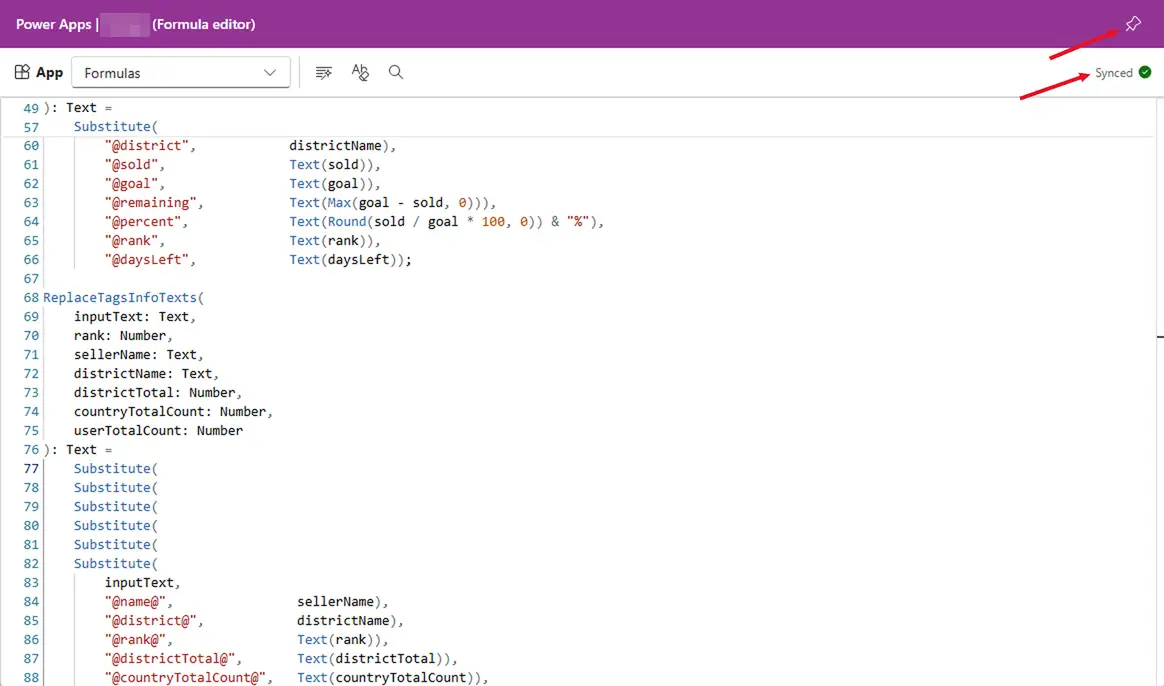
Power Apps Studio can now open the formula bar in its own browser window, with line numbers. Drag it to the other screen, keep the canvas visible, and pin it to one property while you click around.
Before this, expanding the formula bar to read a long OnSelect covered half the app. You couldn’t see the controls you referenced, or what your change did, until you collapsed it again. Matthew Devaney had a pop-out code editor as number 2 on his Power Apps wishlist back in 2023, and I can totally see why.
I got two surprises when I tested it. The pop-out icon didn’t show up until I turned on co-authoring for the app (more on that below). And the first thing I did with the extra space was notice how long some of my own formulas had become. 😅
How to open it
Learn lists two prerequisites, a canvas app open for editing and pop-ups allowed. Co-authoring isn’t one of them, but for me the icon only showed up after turning it on in Settings > Updates. If the icon is missing, check co-authoring first.
- Select the control or screen in Studio.
- Pick the property in the property list.
- Click the Open formula bar in new window icon on the right side of the formula bar.
If nothing happens, your browser is blocking pop-ups. Allow pop-ups for Power Apps Studio and click again.
The Formula editor window has what you expect from the normal formula bar: IntelliSense and function help, syntax and error highlighting, line numbers, Format text, Remove formatting, and Find and replace. Find and replace only works on the formula you have open, not across the whole app.
How it works next to Studio
The editor follows your selection. Click another control in the canvas or Tree view and the editor switches to it. There is no control tree in the editor itself, so you still navigate in Studio.
The part I like most is the pin. Pin the editor and it stays on the current control and property while you click around in the canvas. I want that when I write a Filter on a gallery and need to check the names of the text inputs and dropdowns it reads from. Unpin it and it follows your selection again.
A few things to know:
- Studio has to stay open. The editor shows a Synced status while changes flow back. If it loses the connection, close it and open it again from the formula bar.
- There is no save or publish in the editor. Save, autosave and publish still happen in Studio.
- In a co-authored app the editor respects the same locks as Studio. A formula someone else holds is read-only: you can read and search it, not change it.
Short formulas still matter
The pop-out gives you more room to read. Power Fx runs the formula the same way whether it fits in the old bar or fills a whole screen, so a 350-line OnSelect is as slow and as hard to debug as it has always been. You just see the crappy logic better now. The line numbers help with that: when the formula you’re reading passes line 80, it’s time to restructure.
I worry that a full screen of editor makes long formulas painless to write. They still hurt the next person who opens the app, and that is usually you six months later, on a laptop without the second screen. Your users pay too, when the formula calls the same data source more often than it needs to.
Overcomplicated logic hurts as much as length: Ifs nested five levels deep, or a ForAll inside a Patch inside an If. If you can’t explain what a formula does in one sentence, simplify it before you add to it.
What I look for when a formula gets long:
- The same LookUp or Filter written several times. Wrap it in
With()and name the result once, so the data source gets called once. - Logic you use in more than one place. Move it to named formulas in App.Formulas, or to user-defined functions.
- A non-delegable Filter on a big table. Long formulas are a good place for one to hide.
- Missing comments. Add
//where the why isn’t obvious; they cost nothing at runtime.
Run Format text before you start reading someone else’s formula. If one property needs scrolling on a full monitor, split it.
Two things I found in one of my own apps when I opened App.Formulas in the pop-out. The first is the same LookUp written three times:
mySold = LookUp(colUserRanked, email = User().Email).count;
myGoal = LookUp(colUserRanked, email = User().Email).targetQuantity;
myRank = LookUp(colUserRanked, email = User().Email).ranked;
Look it up once and read the fields from the result. If the filter changes, you change it in one place:
myStats = LookUp(colUserRanked, email = User().Email);
mySold = myStats.count;
myGoal = myStats.targetQuantity;
myRank = myStats.ranked;
The second is If(condition, true, false). The condition already returns true or false, so drop the If:
showEstimated = activeOrder.'System Status' = 690970000;Example: one UDF instead of copy-paste
A common one in expense and approval apps is the same status color logic pasted into every gallery and form. Before, in the Color property of a label in three different galleries:
If(
    ThisItem.Status = "Approved", Color.Green,
    ThisItem.Status = "Rejected", Color.Red,
    ThisItem.Status = "Pending", Color.Orange,
    Color.Gray
)
After, defined once in App.Formulas as a user-defined function:
StatusColor(status: Text): Color =
    Switch(
        status,
        "Approved", Color.Green,
        "Rejected", Color.Red,
        "Pending", Color.Orange,
        Color.Gray
    );
Each label’s Color is now just StatusColor(ThisItem.Status). When a new status shows up, you change one line in one place instead of hunting through screens.
The pop-out editor is a good place to write these. Select App in Tree view, pick Formulas, and write your reusable logic in the pop-out while the gallery stays visible on the other screen. If you can’t explain a formula in one sentence, it’s a candidate. In older apps you may need to turn on User-defined functions under Settings > Updates first.
A UDF from a real app
In a sales app I built, motivation texts live in Dataverse with tags like @name, @sold and @goal. One UDF fills them in wherever a text is shown (trimmed here to four tags):
ReplaceTags(
    inputText: Text,
    sellerName: Text,
    sold: Number,
    goal: Number
): Text =
    Substitute(
    Substitute(
    Substitute(
    Substitute(
        inputText,
        "@name",      sellerName),
        "@sold",      Text(sold)),
        "@goal",      Text(goal)),
        "@remaining", Text(Max(goal - sold, 0)));
A label’s Text is then ReplaceTags(ThisItem.Message, mySellerName, mySold, myGoal). Business users can write new texts in Dataverse without anyone touching the app.
Wrap-up
It’s a small feature that makes long formulas a lot less painful to work with. Turn on co-authoring and allow pop-ups, put the editor on the other screen, and pin it when you write gallery filters.
My biggest takeaway is to use the increased space for readable, clean formulas, and to move any logic you tend to repeat into a UDF.
Are you making use of the new formula bar and UDFs yet?
Sources
- Use the pop-out formula bar in canvas apps, Microsoft Learn
- Understand Power Apps Studio, Microsoft Learn
- Top 10 Power Apps Features Wishlist, Matthew Devaney